
On this page
- Overview
- Quick Start
- Understanding Panes
- Configuring the Layout
- Multiple Hosts
- Workspaces
- Themes
- Auto-Reconnect
- Authentication
- Graphs Deep Dive
- Docker and Root Commands
- Wall Displays and Cycling
- Keybindings
- Troubleshooting
- Appendix: CLI Quick Reference
Overview
hlabtop is a terminal and desktop application that monitors your homelab servers through SSH. It displays system metrics (CPU, memory, GPU, disk, containers) in configurable panes that you can arrange, resize, and reorder. Each pane runs a command on a remote host — interactive tools like htop accept your keyboard input, while view-only panes like nvidia-smi display live output.
This guide walks you through connecting, configuring, and using hlabtop’s main features.
Quick Start
1. Launch and Connect
Run hlabtop (with no arguments) to open the desktop GUI. You will see the connection screen. Fill in:
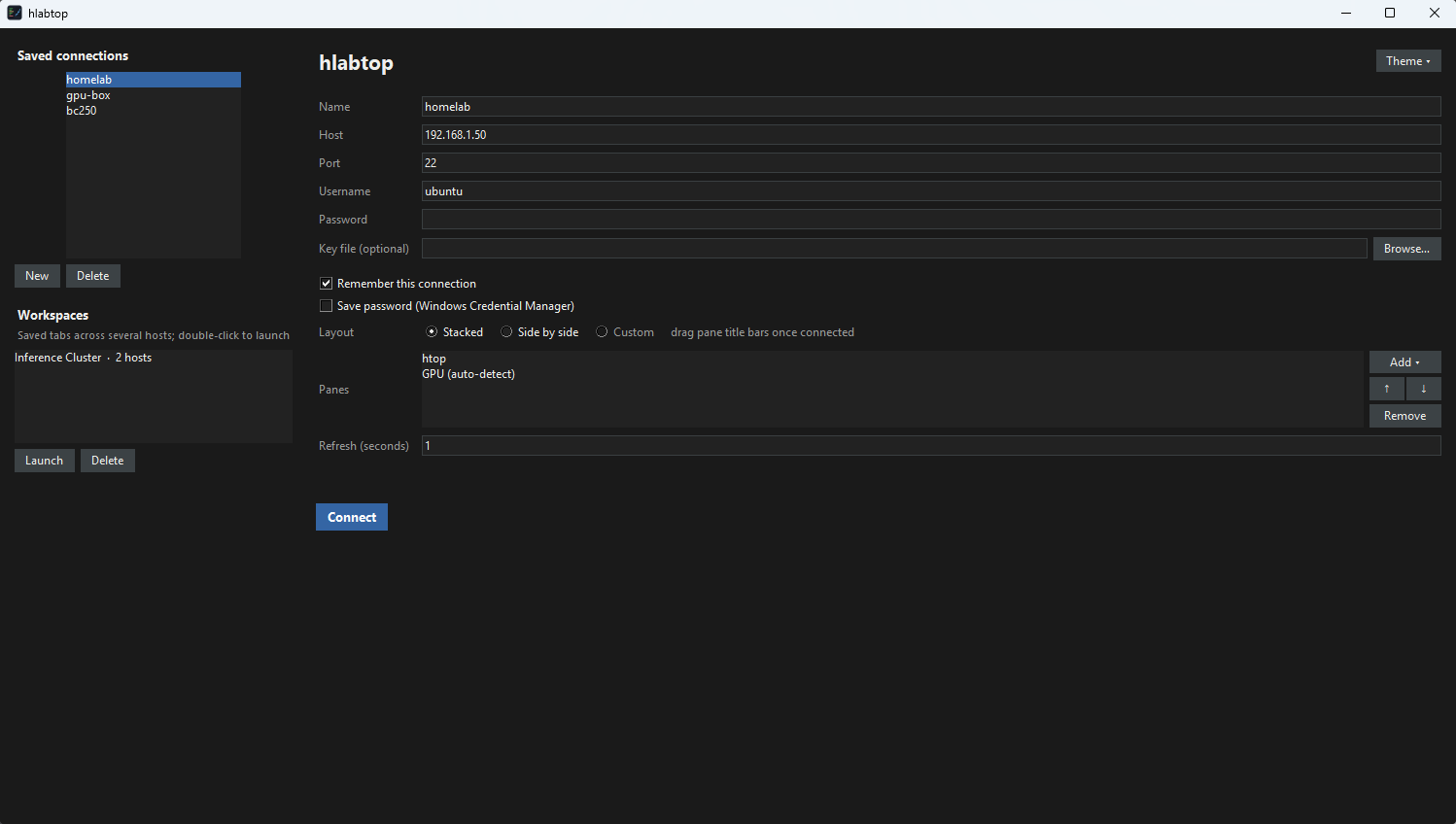
| Field | Example | Notes |
|---|---|---|
| Host | 192.168.1.50 or myserver.local | IP address or hostname |
| Port | 22 | Leave blank for default |
| Username | ubuntu or root | Your SSH username |
| Password | (your password) | Or leave blank if using key auth |
Check Remember this connection to save it for future sessions. Check Save password to store it in your OS secret store (Windows Credential Manager, macOS Keychain, or GNOME Keyring).
Click Connect.
2. Verify the Connection
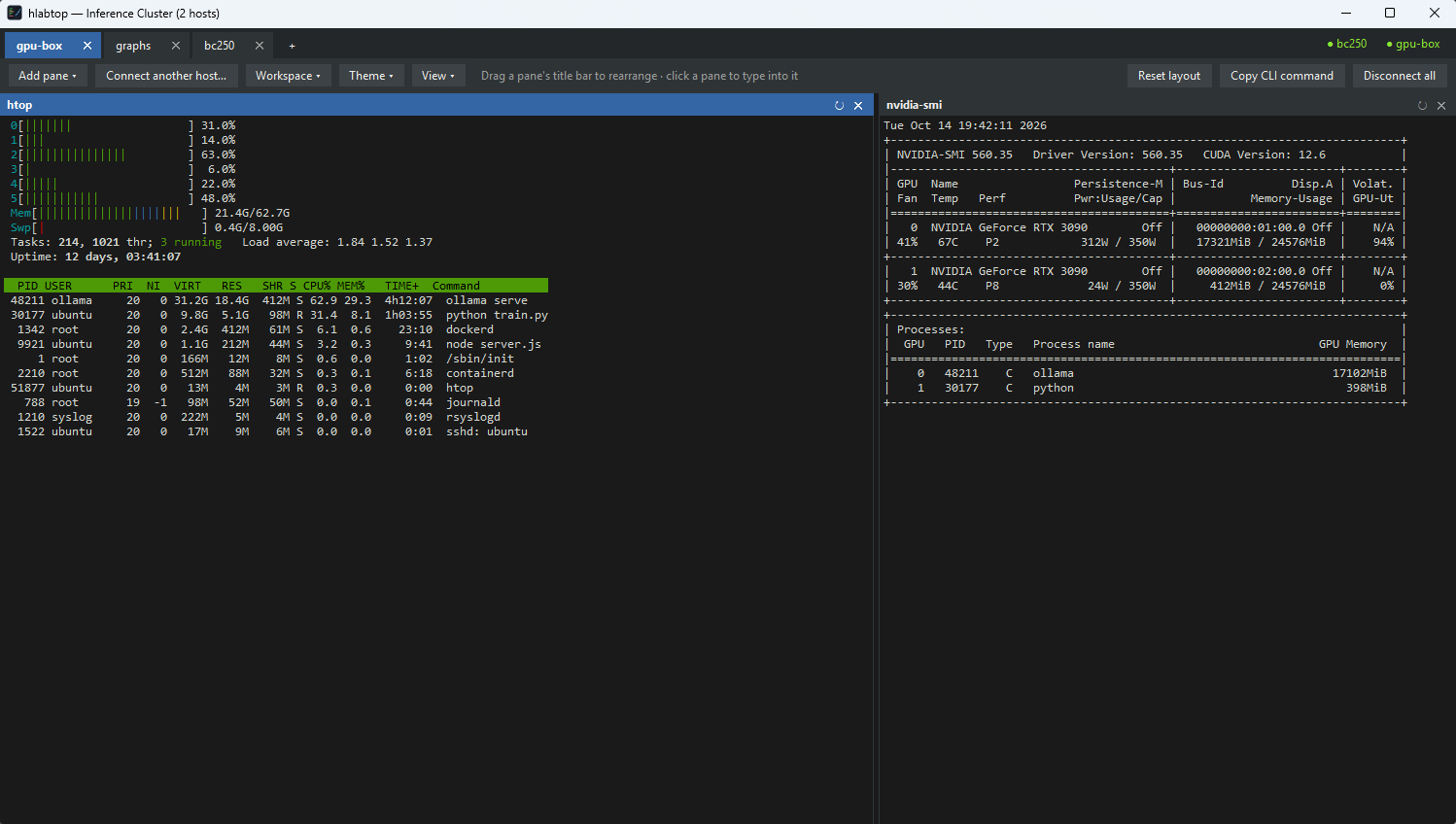
Once connected, you will see panes displaying output from commands running on the remote host. By default you get:
- htop — an interactive process viewer
- GPU — auto-detected GPU tool output (
nvidia-smifor NVIDIA,rocm-smifor AMD)
A colored dot per host at the right of the tab bar shows its connection status (green = connected, yellow = reconnecting, red = failed). On a dashboard that mixes hosts, each pane’s title also names its host.
Understanding Panes
Panes are the building blocks of hlabtop. Each pane runs a command on a remote host and displays its output.
Built-in Presets
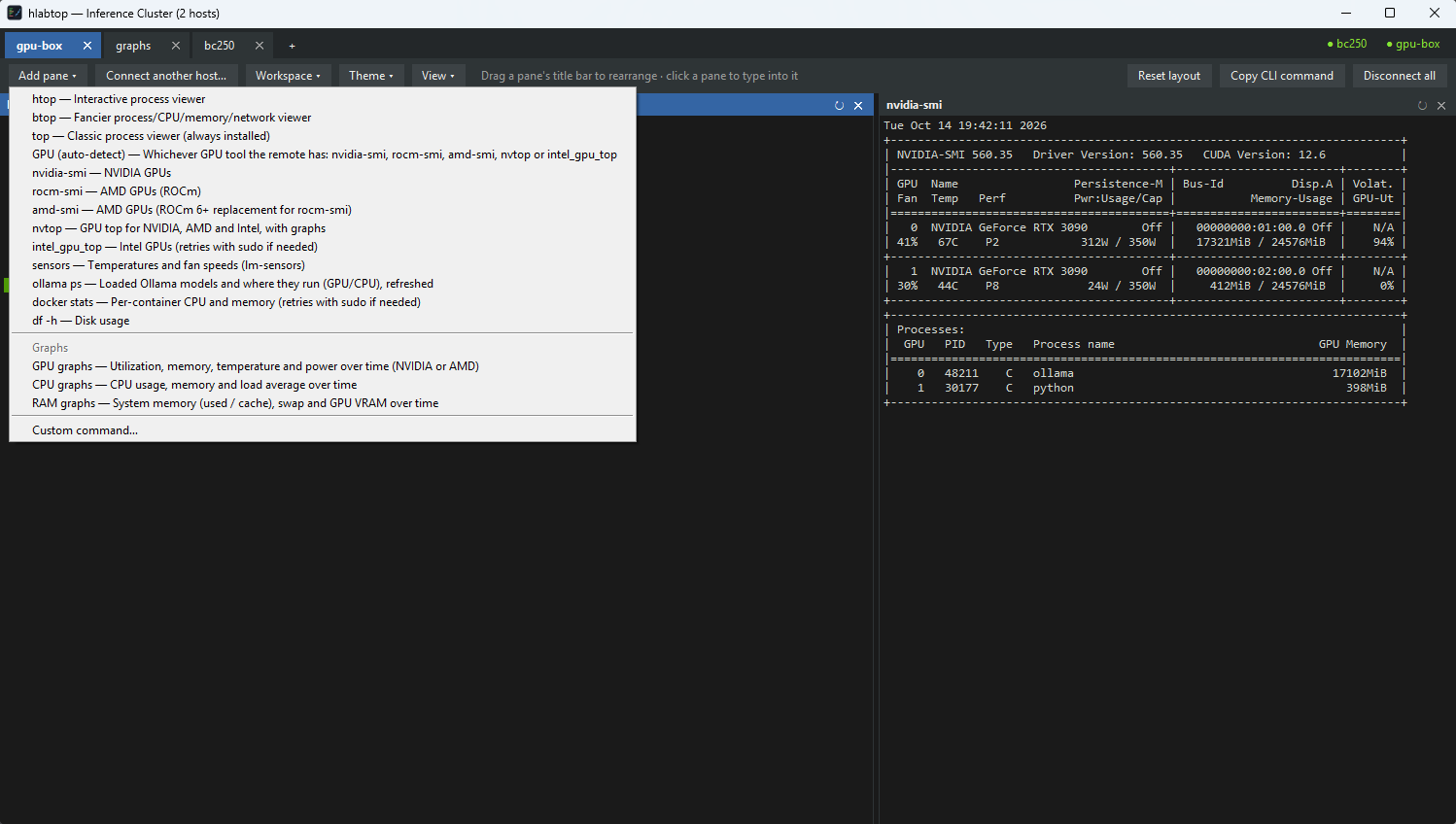
hlabtop includes presets for common monitoring tools:
| Preset | Command | Interactive | Description |
|---|---|---|---|
htop, btop, top | process viewer | Yes | Interactive process viewer |
gpu | auto-detects first available GPU tool | No | Works on NVIDIA, AMD, and Intel |
nvidia-smi | watch nvidia-smi | No | NVIDIA GPU metrics |
rocm-smi | watch rocm-smi | No | AMD ROCm metrics |
amd-smi | watch amd-smi monitor | No | AMD metrics (ROCm 6+ replacement for rocm-smi) |
nvtop | nvtop | Yes | GPU tool with graphs (NVIDIA/AMD/Intel) |
intel_gpu_top | intel_gpu_top | Yes | Intel GPU monitoring |
sensors | watch sensors | No | Temperature and fan readings (lm-sensors) |
ollama | watch ollama ps | No | Loaded Ollama models and GPU/CPU placement |
docker | docker stats | Yes | Per-container CPU/memory usage (retries with sudo if needed, so you can type the password in the pane) |
disk | watch df -h | No | Disk usage |
Custom Commands
Any preset name not recognized is treated as a custom shell command:
hlabtop myserver --pane "tail -f /var/log/syslog" --pane "uptime"In the GUI (Add pane ▾ ▸ host ▸ Custom command…), after the command and a title you’re asked:
- “Re-run it every refresh interval (like watch)?” — Yes for commands that print once and exit (
ollama ps,df -h); hlabtop re-runs them for you. - If not: “Forward keyboard and mouse to this command?” — Yes for interactive programs (
top,less), No for view-only output (tail -f).
Commands that run once and exit (like ollama ps) show their output followed by the exit status. Press Enter or click the pane to restart it.
Graph Panes
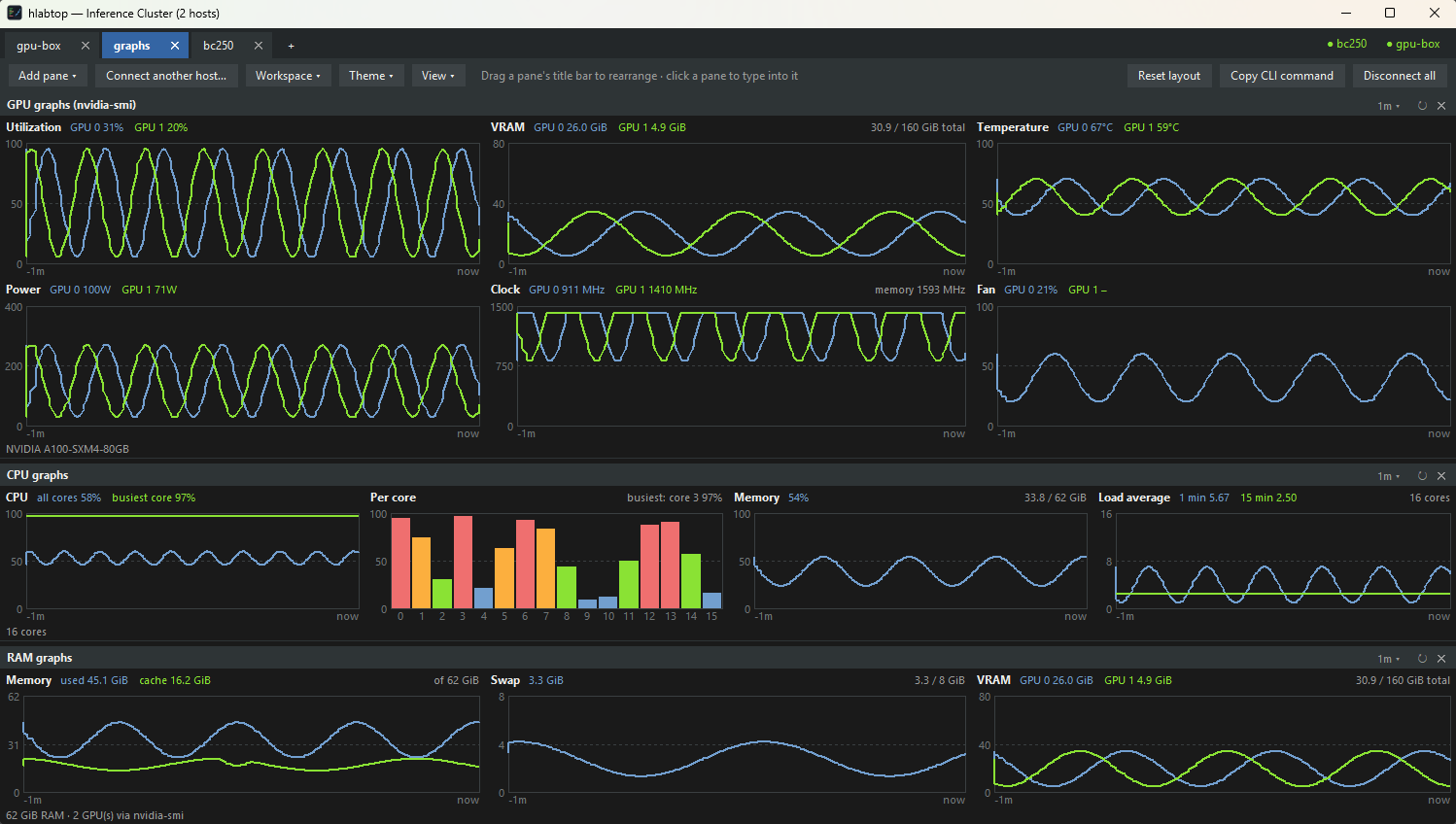
Three special panes chart metrics over time instead of displaying live output:
| Graph Preset | Monitors |
|---|---|
gpu-graph | GPU utilization, VRAM, temperature, power, clocks, fan speed |
ram-graph | System memory (used/cache/swap), GPU VRAM |
cpu-graph | CPU usage, busiest core, per-core bars, memory, load average |
Features:
- Click the time-range button in the pane’s title bar (e.g. 5m ▾) to switch between 1, 5, 15 and 60 minutes
- Hover over charts in the GUI to see exact values at that point
- If the connection drops, sampling resumes after reconnect with a gap shown in the chart
- Graphs sample every refresh interval (default 1s, configurable with
--interval)
Configuring the Layout
Desktop GUI: Drag and Drop
Panes can be arranged in any mix of side-by-side and stacked groups:
- Drag a pane by its title bar and drop it onto another pane
- Drop near an edge — the pane slides beside the target (a blue box previews placement)
- Drop in the middle — the panes swap places
- Resize — drag the dividers between panes
Terminal UI: Layout Strings
In terminal mode, layouts are defined as text strings:
# Horizontal arrangement (side by side)
hlabtop mybox --layout "horizontal" --pane htop --pane gpu

# Vertical arrangement (stacked)
hlabtop mybox --layout "vertical" --pane htop --pane gpu

# Mixed: htop on left (60%), GPU and sensors stacked on right (40%)
hlabtop mybox --layout "h(htop:3,v(gpu,sensors):2)"

# Deeply nested groups with size ratios
hlabtop mybox --layout "h(gpu-graph:2, v(htop:1, ram-graph:1))"
Layout syntax:
h(...)— panes side by sidev(...)— panes stacked:N— relative size weight (e.g.,:3means 3 parts vs 2 parts)- Nested groups:
h(gpu, v(htop, sensors))— GPU on left, htop above sensors on right
A preset name in the layout doesn’t need its own --pane: it is matched to a --pane of that preset if you gave one, and otherwise added for you. Any --pane the layout doesn’t mention is added at the end.
For custom commands, refer to panes by number (1-indexed):
hlabtop mybox --pane htop --pane "tail -f /var/log/syslog" --layout "v(h(1,gpu),2)"Copying a Layout to CLI
In the GUI, after arranging your panes visually, click Copy CLI command to copy the equivalent --layout string to your clipboard.
Saving Layouts
- Per-connection: Layout changes to a saved connection are saved automatically
- Workspaces: Save an entire window layout (tabs, panes, arrangement) as a workspace
Multiple Hosts
Watch several machines from one window.
Desktop GUI
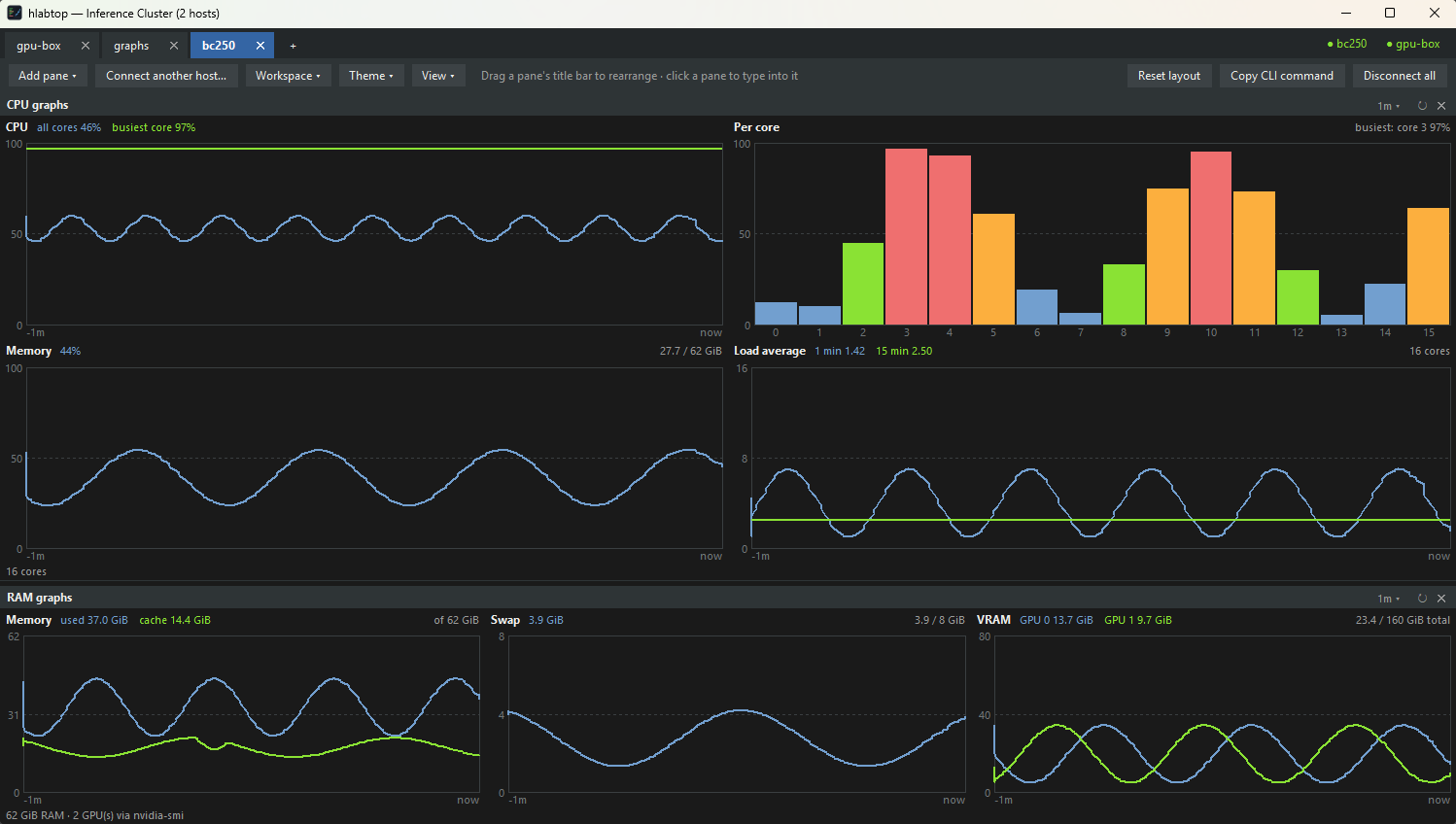
- Click the + button on the tab bar (or Connect another host…) to add a second SSH connection
- Each host gets its own tab with independent layout and panes
- Add pane lets you pick which host to add a pane to — tabs can mix hosts
- Connection dots at the right of the tab bar show status per host (click one for its menu):
- Green = connected
- Yellow = reconnecting
- Red = failed (the menu has Reconnect now)
Terminal UI
Pass multiple hosts on the command line:
hlabtop gpu-node-1 gpu-node-2 gpu-node-3Each host gets a tab. Switch tabs with Ctrl+PageDown / Ctrl+PageUp.
For a single dashboard mixing hosts:
hlabtop node1 node2 --layout "v(h(gpu-graph@node1,gpu-graph@node2):2,htop@node1)"Pane host assignment uses @: sensors@node2 puts that pane on node2 only.
Workspaces
A workspace is a saved window: tabs, panes, host assignments, and layout.
Creating a Workspace
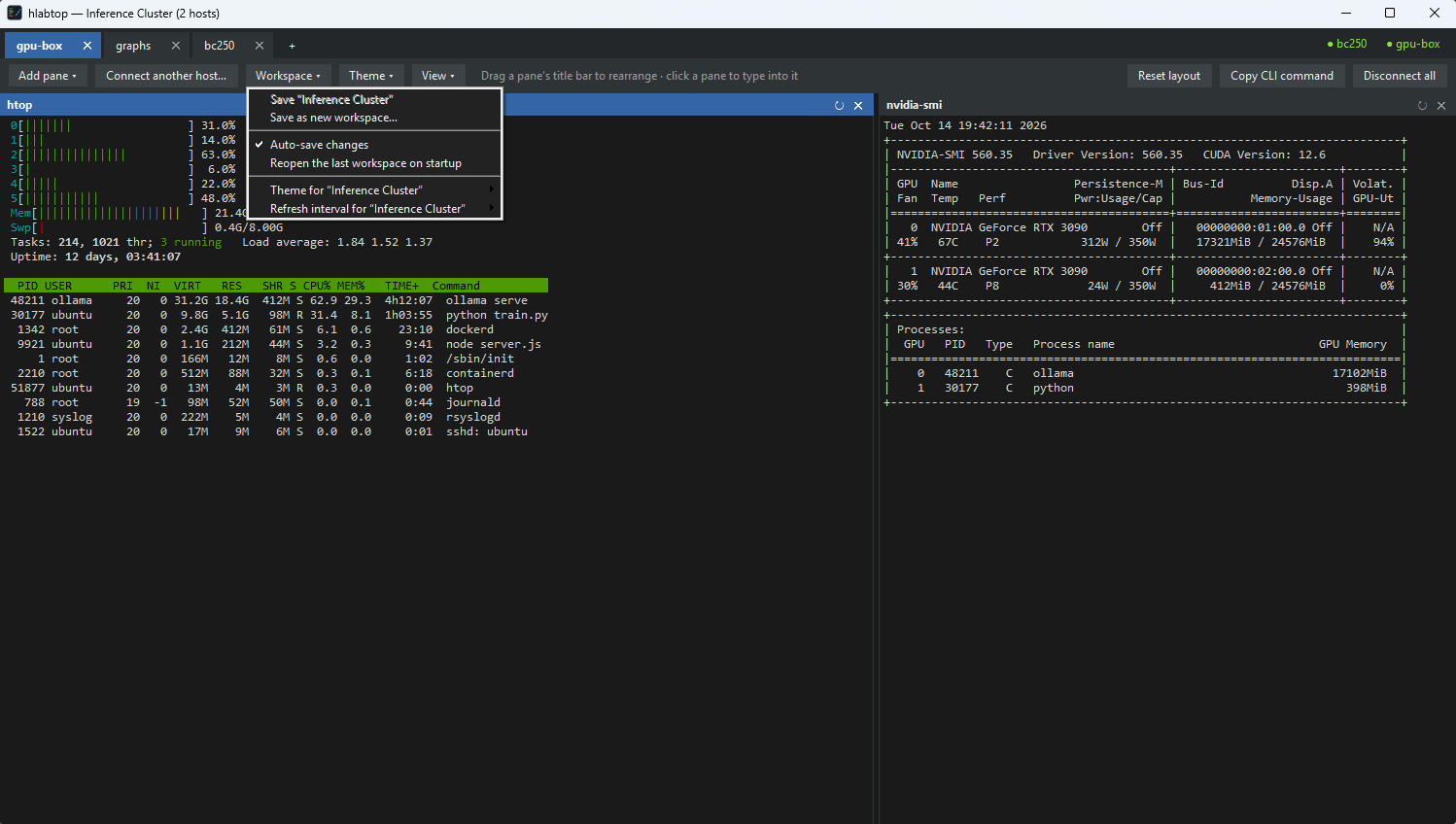
- Arrange your panes and connect your hosts
- Go to Workspace > Save as new workspace…
- Give it a name (e.g., “Inference Cluster”)
Opening a Workspace
- GUI: Double-click the workspace name on the connect screen
- GUI (command line):
hlabtop --workspace "Inference Cluster" - Terminal UI:
hlabtop --workspace "Inference Cluster" --cli
Workspace Features
| Feature | How to Access | Description |
|---|---|---|
| Save | Workspace > Save “name” | Save current state to an existing workspace |
| Switch | Workspace > Switch to workspace | Close this workspace, open another |
| Auto-save toggle | Workspace > Auto-save changes | Pause auto-save; title shows dot while unsaved |
| Theme per workspace | Workspace > Theme for … | Per-workspace color theme |
| Interval per workspace | Workspace > Refresh interval for … | Per-workspace refresh rate (e.g., 5s for large clusters) |
| Reopen last | Workspace > Reopen the last workspace on startup | Restore workspace on next launch |
Themes
Change the color scheme from Theme in the menu bar:
- Dark (default)
- Light
- High contrast
- Solarized Dark / Solarized Light
- Dracula
- Nord
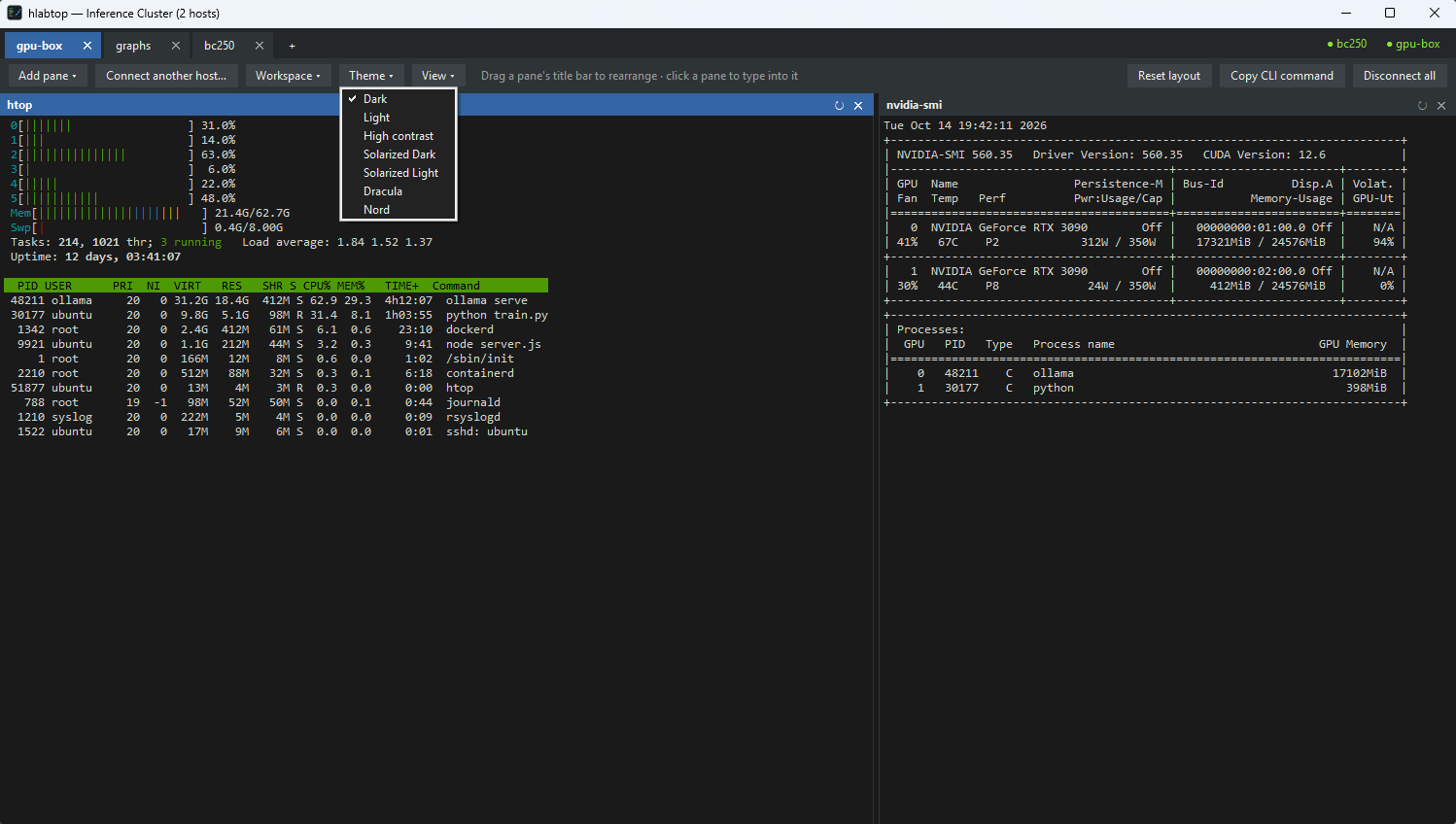
The theme switches instantly across all panes, tabs, graphs, and the terminal. Your choice is remembered.
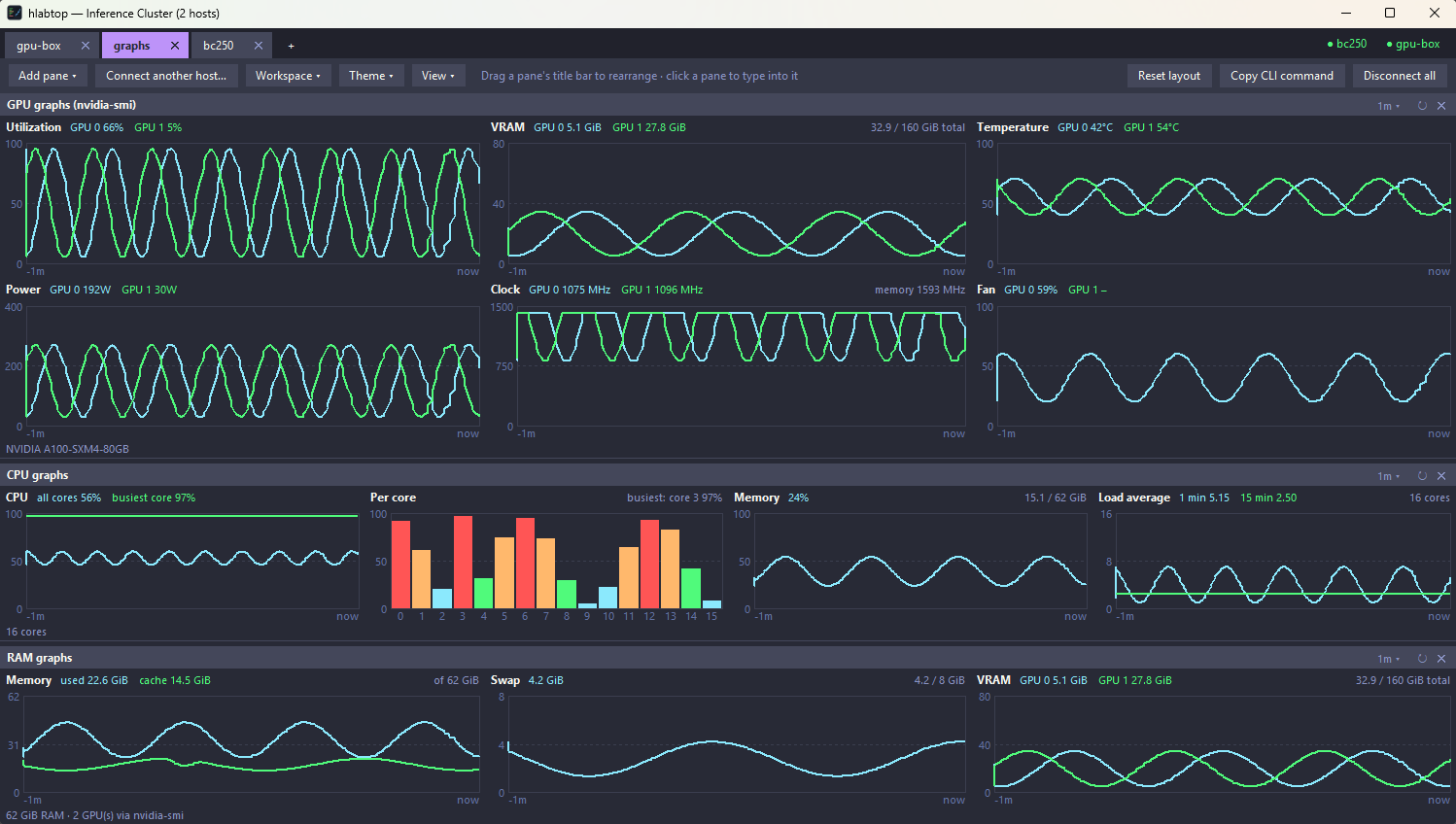
Override per-launch from the command line:
hlabtop mybox --theme draculaAuto-Reconnect
hlabtop monitors SSH connections and automatically reconnects if dropped:
- Detection: Up to 20 seconds for silent drops, a few seconds for hard drops
- Retry schedule: 1s, 2s, 5s, 10s, 20s, then every 30s
- During reconnect: Tab title shows Reconnecting… with a countdown
- Manual reconnect: Click Reconnect now (GUI) or wait for the automatic retry
When reconnected, panes restart their commands in the same layout. Graph history is preserved (with a gap during the outage).
The app will not reconnect if the host key changes (possible MITM) or if passwords are rejected after reconnect — these require manual intervention.
Authentication
hlabtop supports two authentication methods:
SSH Keys (Recommended)
hlabtop -i /path/to/private_key user@hostOr use your SSH agent (ssh-agent on Linux/macOS, Pageant on Windows). Keys stored in ~/.ssh/ are tried automatically.
Password Authentication
Enter the password in the GUI connect dialog. For the terminal UI, you are prompted on the console.
Passwords are stored in memory only. If you check Save password, they are stored in your OS secret store:
- Windows: Credential Manager
- macOS: Keychain
- Linux: GNOME Keyring or KWallet
Host Key Verification
The first time you connect to a host, hlabtop asks you to trust its SSH key (same as ssh -o StrictHostKeyChecking=ask). The key is remembered in ~/.ssh/known_hosts. If the key changes, reconnection stops and shows an error to prevent MITM attacks.
Graphs Deep Dive
GPU Graph
Displays per-GPU metrics:
- Utilization — percentage of compute utilization
- VRAM — memory used (GiB) against total card size
- Temperature — GPU core temperature
- Power — scaled to the card’s power limit
- Clock — graphics clock against max, with memory clock alongside
- Fan speed — only shown if the GPU reports fan data (datacenter cards are often passively cooled)
Reads nvidia-smi on NVIDIA systems, rocm-smi or amd-smi on AMD.
RAM Graph
Displays:
- System memory — used and cache (GiB) from
/proc/meminfo - Swap — swap space used
- GPU VRAM — included when a GPU tool is available
CPU Graph
Displays:
- Overall CPU usage — average across all cores
- Busiest core — shows single-threaded bottlenecks the average hides
- Per-core bars — color-coded load bars for each core
- Memory and load — memory used and load average with core count for scale
The CPU and RAM graphs work on any Linux box, reading from /proc; the GPU graph needs nvidia-smi, rocm-smi or amd-smi on the remote.
Docker and Root Commands
The docker and intel_gpu_top presets retry with sudo when they need to: the password prompt appears inside the pane — click it, type the password, press Enter.
For another command that needs root, add it as a custom command starting with sudo and answer Yes to “Forward keyboard and mouse to this command?”, so you can type the password in the pane.
To use Docker without a password at all:
sudo usermod -aG docker $USER
# Log out and back in for group membership to take effectWarning: Docker group membership is effectively root access on the machine.
Wall Displays and Cycling
Configure hlabtop to run on a wall-mounted display:
Desktop GUI
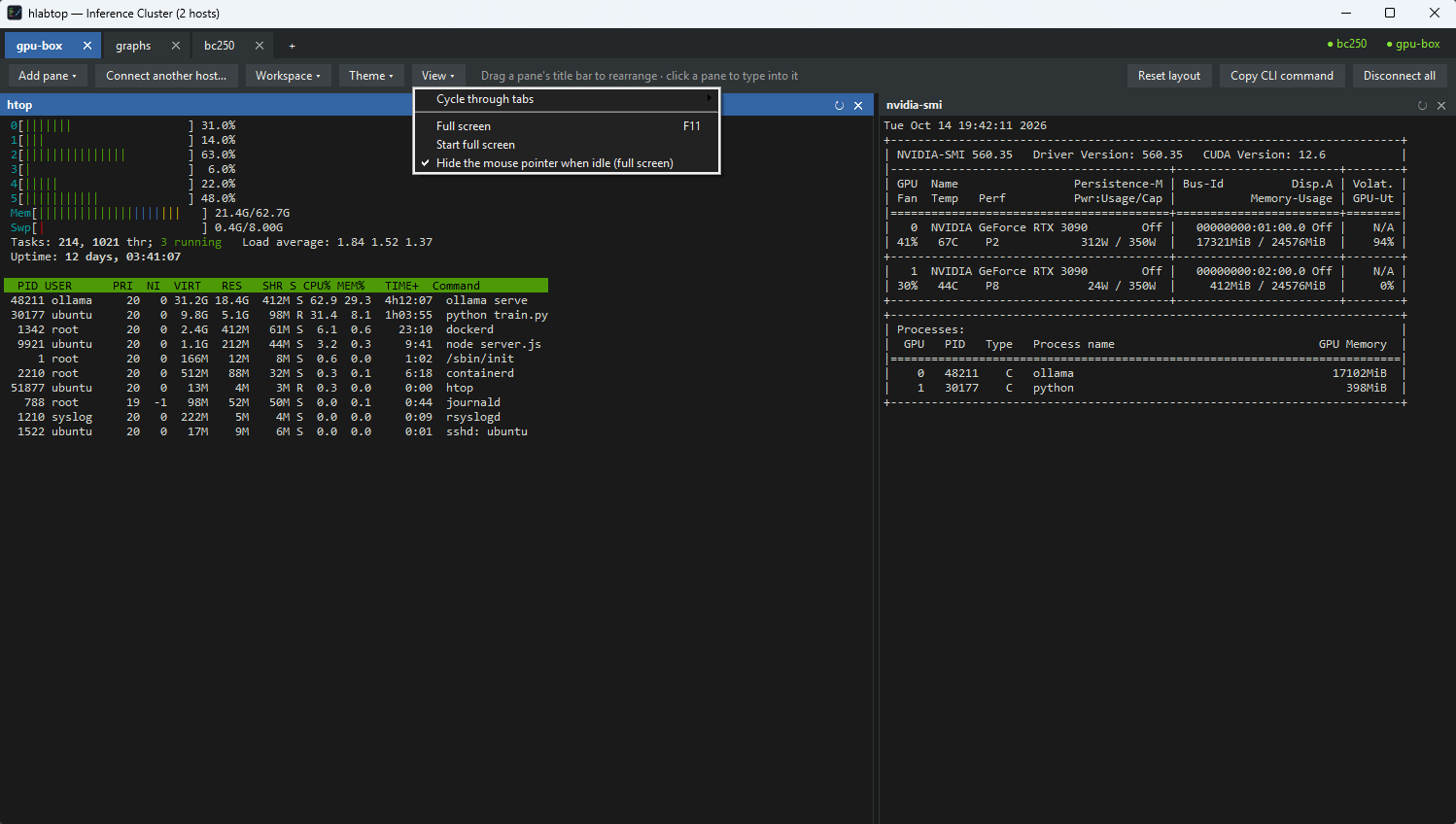
- Go to View > Cycle through tabs
- Select interval: 5, 10, 15, 30, 60 seconds, or custom
- The cycling pauses while you use the mouse or keyboard, then resumes one period after you stop
- Enable Full screen (F11) and Hide the mouse pointer when idle
From the command line
# GUI: open a workspace full screen, cycling every 15 seconds
hlabtop --workspace "Homelab" --cycle 15 --fullscreen

# Terminal UI: cycle through a workspace's tabs (make the terminal itself full screen)
hlabtop --workspace "Homelab" --cli --cycle 15
--cycle switches between tabs, so in the terminal UI it needs several hosts (hlabtop node1 node2 --cycle 15) or a workspace; with a single host it is rejected. It must be at least 1 second, or 0 to turn off a workspace’s saved cycling for that run. --fullscreen is GUI-only.
Fully Automatic Wall Display
For a display that boots and runs on its own:
- Save a workspace with cycling enabled
- Check Workspace > Reopen the last workspace on startup
- Check View > Start full screen
- Save all host passwords
- Add hlabtop to the machine’s startup programs
Keybindings
| Key | Action |
|---|---|
| F11 | Toggle full screen (GUI) |
| Ctrl+PageDown / PageUp | Switch tabs (terminal UI) |
| Ctrl+Q | Quit the terminal UI |
| Enter | Restart a pane whose command exited |
Important: Everything you type goes to the focused interactive pane (htop, nvtop, etc.). Press F1 in htop for its help. Click another pane (or its title bar) to give it focus; in the GUI the focused pane’s title bar turns blue.
Troubleshooting
Pane Shows “remote process exited”
The command on the remote host ended. Press Enter or click the pane to restart it. Common causes:
- The tool is not installed on the remote (e.g.,
nvidia-smiwithout NVIDIA drivers) - You pressed
qto quit htop on the remote - The command was a one-shot command like
ollama ps
Connection Fails with “Host key changed”
The remote server’s SSH key has changed. Verify it’s the correct server, then remove the old key from ~/.ssh/known_hosts and reconnect.
Docker Pane Shows Permission Denied
The docker preset retries with sudo and asks for the password inside the pane. To skip the password, add your SSH user to the docker group on the remote.
Graph Pane Shows No Data
- Ensure the GPU tools are installed on the remote (
nvidia-smi,rocm-smi, etc.) - Check that the connection is active (green dot at the right of the tab bar)
- Look at the pane’s error message for diagnostic details
Appendix: CLI Quick Reference
# Launch GUI (default)
hlabtop

# Terminal UI for a single host
hlabtop user@host

# Terminal UI with specific options
hlabtop -p 2222 -u admin -i ~/.ssh/mykey myserver --pane htop --pane gpu --pane sensors

# Terminal UI with multiple hosts
hlabtop node1 node2 node3 --pane htop --pane gpu-graph

# Terminal UI with custom layout
hlabtop mybox --layout "h(htop:3,v(gpu,sensors):2)" --pane gpu --pane sensors

# Terminal UI with theme and refresh interval
hlabtop mybox --theme dracula --interval 5

# List available presets
hlabtop --list-panes

# List saved workspaces
hlabtop --list-workspaces

# Open a workspace in terminal mode
hlabtop --workspace "My Cluster" --cli

# Skip host key verification (not recommended)
hlabtop mybox --insecure

# Full screen + tab cycling for wall displays (GUI)
hlabtop --workspace "Wall Display" --cycle 30 --fullscreen